How to scan barcodes and QR codes in Sklad
Your camera can find things for you. Scan a section's QR code to open that section, or scan an item's barcode to open the item.
Do this
- Click Scan: on the dashboard, a storage page or a section page.
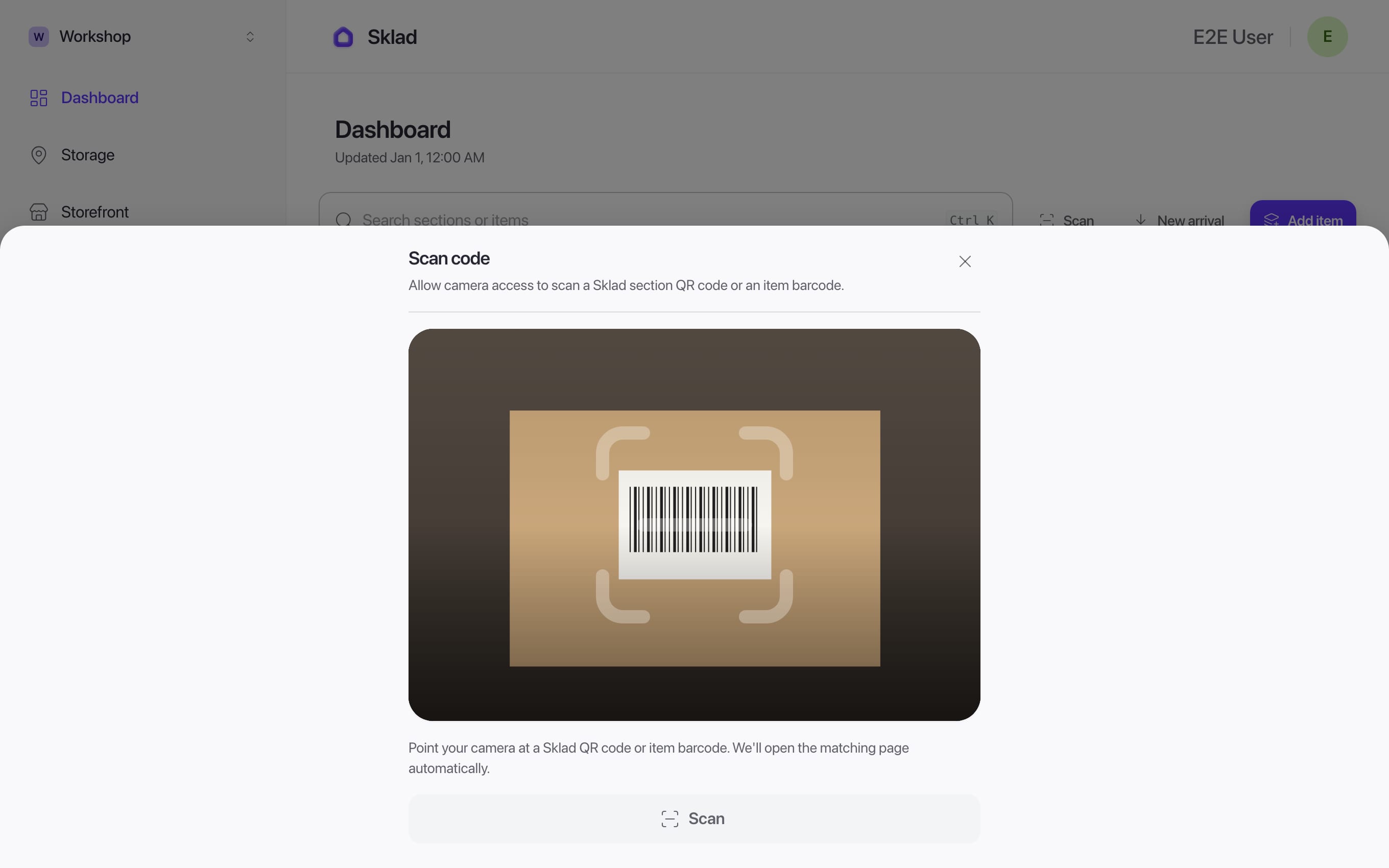
- Allow the camera when your browser asks, and point it at the code.
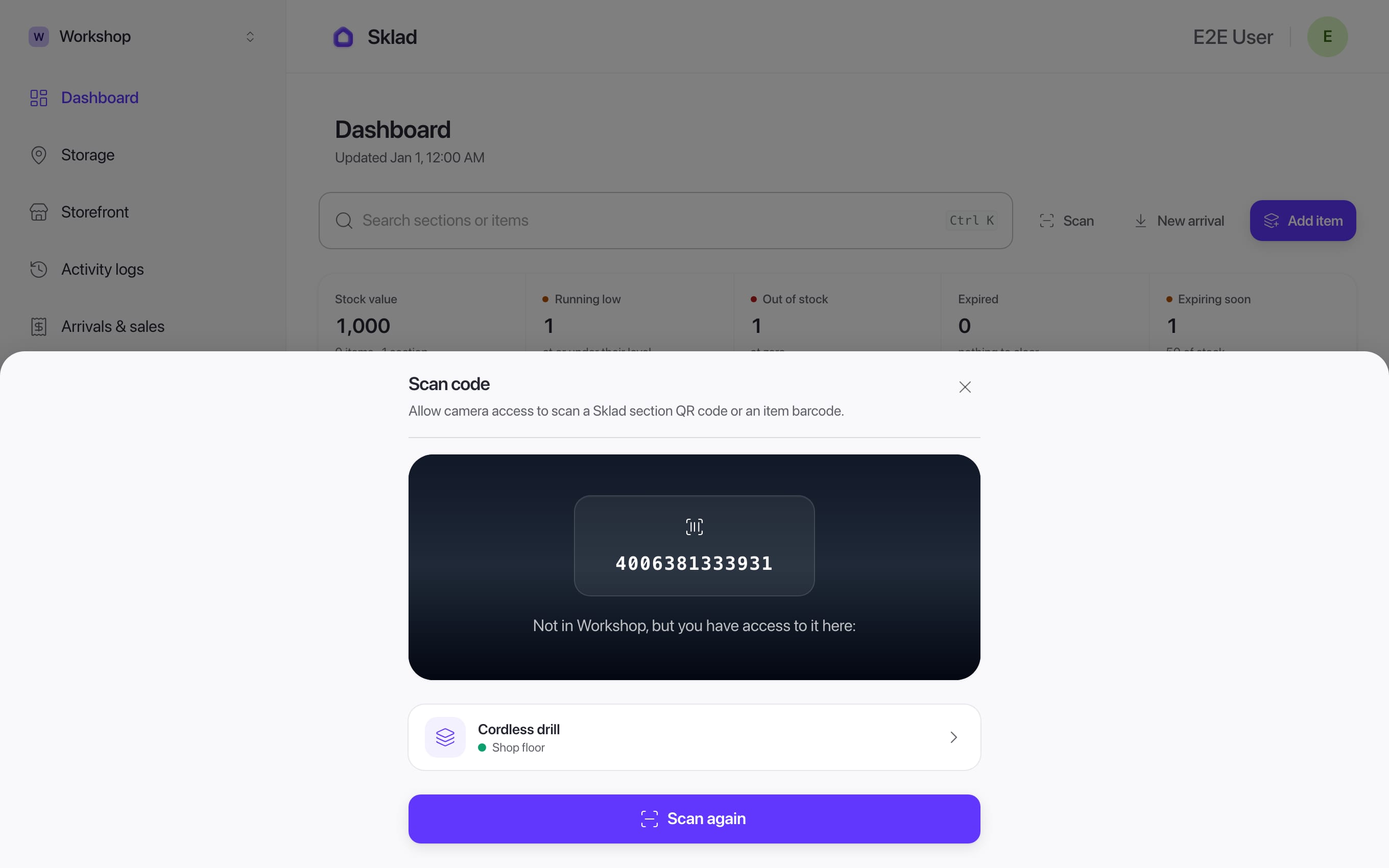
- A section code opens the section. A barcode opens the item that carries it, even if it is in another of your storages.
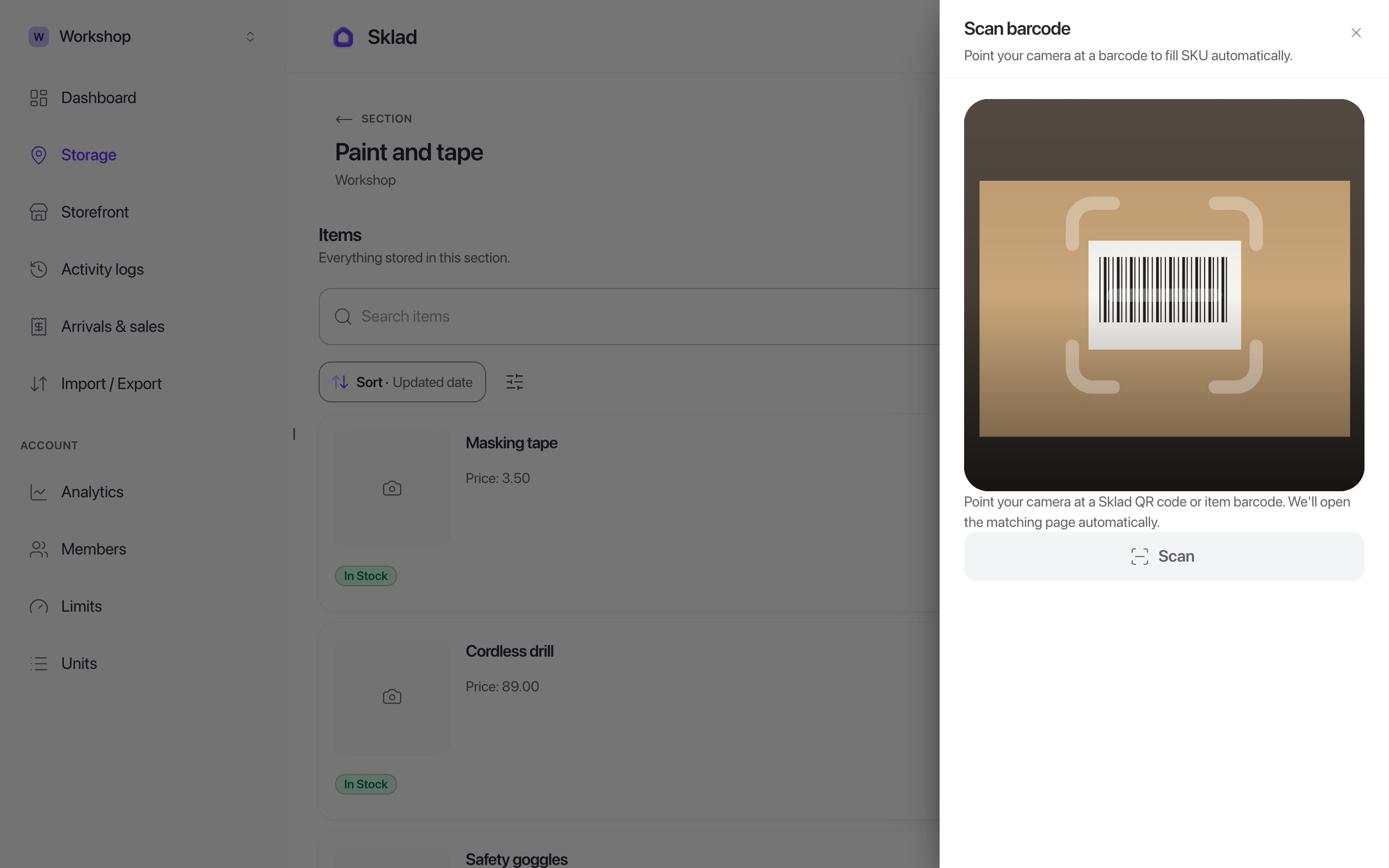
- To give an item a barcode, open its form and click Scan barcode. The SKU fills in.
If it goes wrong
Nothing happens: check that your browser is allowed to use the camera.
The code is not found: no item carries that code yet, so add it as the item's SKU (step 4).
- Anything elseContact us
Next
- Barcode Inventory System — Scan-First Workflows
- How to add items with photos and notes in SkladAn item is one thing you keep track of: its name, how many you have, and where it is.
- How to set up storages and sections in SkladA storage is one place you keep things, like a stockroom, a garage or a shop.
- How to set up low-stock alerts in SkladGive an item a level, and Sklad tells you when its count falls to it.